Run React App: Easy Steps to Start & Develop
A step-by-step guide to running a React app locally: install Node.js, scaffold with Vite or Create React App, start the dev server, fix common errors, and build for production.
If you are looking for a clear, practical guide on how to run a React app, this walkthrough covers the whole path: installing Node.js, scaffolding a project, starting the development server, fixing the errors that stop beginners, and producing a production build. The same steps apply whether you are building a small portfolio site or an enterprise dashboard.
*A running React project is really two things working together: a Node-powered dev server and a browser tab that reloads itself. Illustration © devloader.com*
Key takeaways
- You need Node.js (LTS) and npm installed before anything else — everything in React tooling runs on them.
- Scaffold with
npm create vite@latest(modern default) ornpx create-react-app(legacy but still widely documented). - Start the dev server with
npm run dev(Vite) ornpm start(Create React App); both give you hot module replacement. npm run buildis a different job entirely: it minifies and bundles your app into a static folder for deployment.- Most "it won't start" problems are a port clash, a stale
node_modulesfolder, or an unsupported Node version.
Step 1: install Node.js and verify your environment
React itself runs in the browser, but every tool around it — the bundler, the dev server, the package manager — runs on Node.js. Download the LTS release from nodejs.org, install it, then confirm the install from your terminal:
node -v
npm -v
If both commands print a version number, you are ready. Aim for Node 20 or newer; older majors are dropped quickly by Vite and modern React tooling, and an unsupported version is one of the most common reasons a fresh project refuses to start.
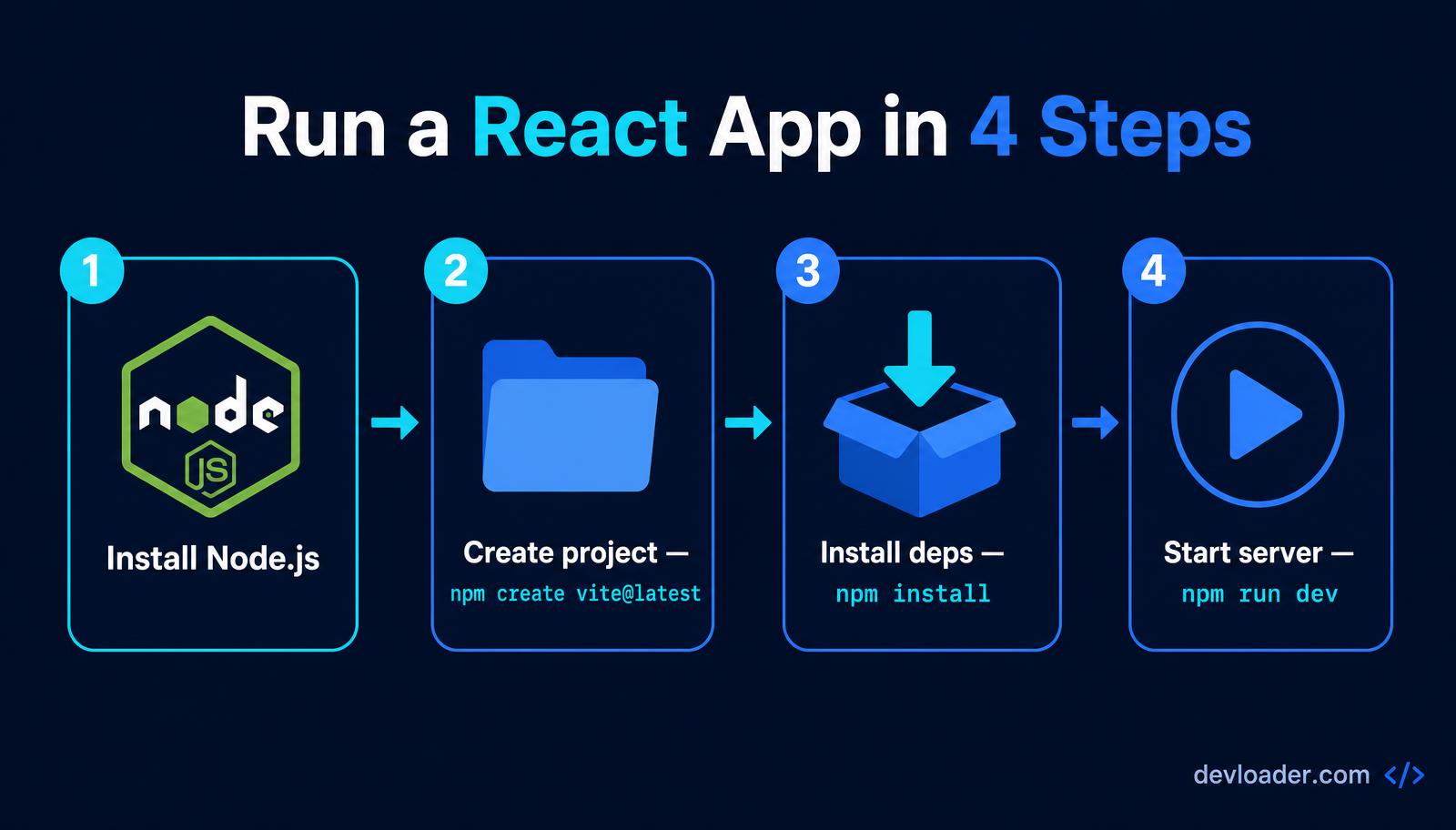
*From empty folder to running app in four commands — this is the entire happy path. Illustration © devloader.com*
Step 2: create the project
The modern default — Vite
Vite is what most teams reach for in 2026. It boots in under a second and produces a much leaner dependency tree:
npm create vite@latest my-react-app -- --template react
cd my-react-app
npm install
Swap react for react-ts if you want TypeScript from day one — a choice worth making early, as we explain in our TypeScript vs JavaScript comparison.
The classic — Create React App
Create React App (CRA, sometimes written "cra reactjs") was the officially supported starter for years. It hides Webpack and Babel configuration behind a single dependency, which is why so many tutorials still use it:
npx create-react-app my-react-app
cd my-react-app
Using npx rather than a global install guarantees you pull the latest generator instead of a stale copy. CRA is no longer actively recommended by the React team, so treat it as a way to follow older tutorials rather than a foundation for new production work.
Your first component
Open src/App.jsx and replace the contents with a classic React hello world:
export default function App() {
  return (
    <main>
      <h1>Hello, React!</h1>
      <p>Your development server is running.</p>
    </main>
  );
}
Step 3: start the development server
This is the command everything else has been leading to. From inside the project folder:
# Vite
npm run dev

# Create React App
npm start
The terminal prints a local URL — http://localhost:5173 for Vite, http://localhost:3000 for CRA — and CRA opens the browser for you automatically. Save any file and hot module replacement swaps the changed module in place, keeping component state intact and skipping a full refresh.
Running on a different port
If the default port is already taken by another service, override it. With Vite, pass a flag or edit vite.config.js:
npm run dev -- --port 3001With Create React App, add a .env file in the project root:
PORT=3001Environment variables in React are exposed to your code only when prefixed — VITE_ for Vite, REACT_APP_ for CRA — and they are compiled into the client bundle, so never put secrets there.
Step 4: fix the errors that stop most beginners
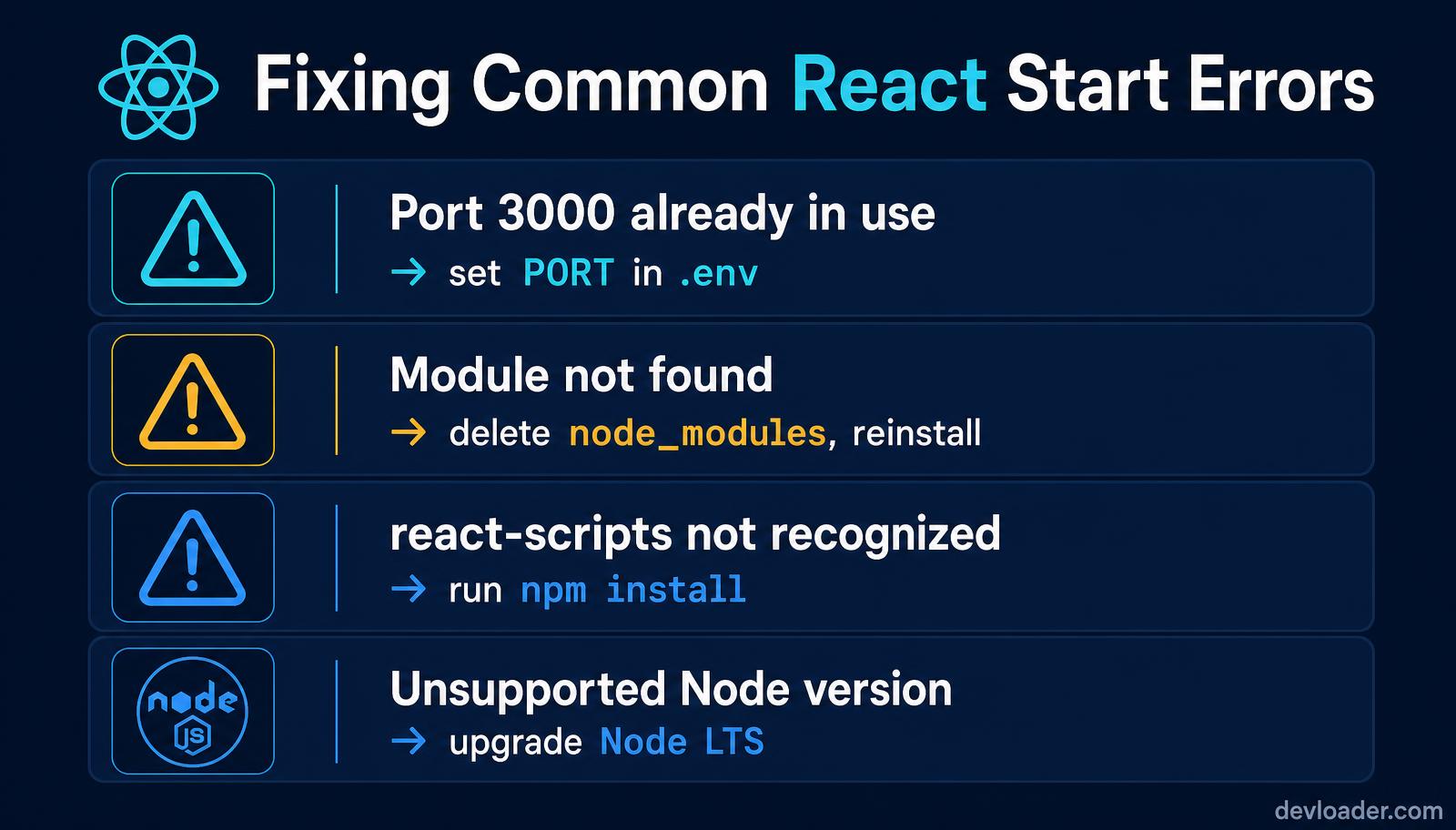
*Four failures account for the overwhelming majority of "npm start not working" reports. Illustration © devloader.com*
react-scripts: command not found — dependencies were never installed, or the install was interrupted. Run npm install inside the project folder.
Module not found: Can't resolve ... — either the import path is wrong (check casing; it matters on Linux and in CI even when it works on macOS) or your dependency tree is corrupted. The reliable reset:
rm -rf node_modules package-lock.json
npm install
Port 3000 is already in use — either accept the alternative port the CLI offers, set a new one as shown above, or stop the process holding it: lsof -ti:3000 | xargs kill.
Blank white page with no errors — usually a JavaScript exception during render. Open DevTools, read the console, and check that index.html contains the root element your entry file mounts to.
Step 5: build for production
npm run dev is for your laptop only. When it is time to deploy, run the build:
npm run build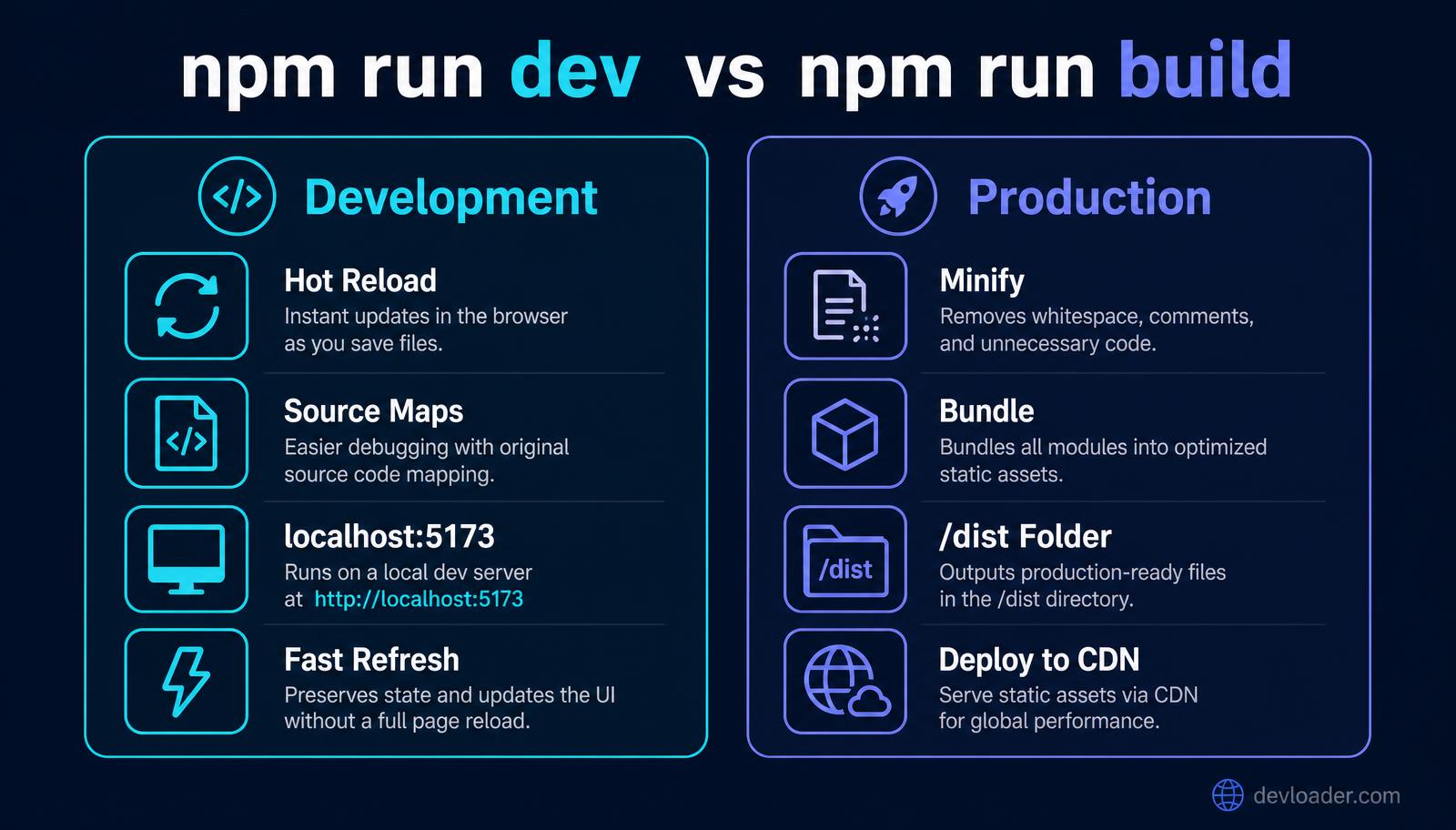
*Development prioritises feedback speed; the production build prioritises payload size and caching. Illustration © devloader.com*
The build minifies JavaScript and CSS, hashes filenames for long-term caching, tree-shakes unused code, and writes everything to dist/ (Vite) or build/ (CRA). Preview it locally before shipping:
npm run previewThose static files can be served by any host — Netlify, Vercel, Cloudflare Pages, S3, or your own Nginx server.
One important limitation
A default React build is a single-page application: the HTML shell is empty and the content is rendered by JavaScript. That is fine for dashboards behind a login, but it costs you on marketing pages where search engines and social crawlers matter. If SEO is a requirement, move to a framework that renders on the server — see our beginner's guide to Next.js and the practical breakdown in React vs Next.js: which should you use.
Frequently asked questions
What command runs a React app?
npm run dev for a Vite project and npm start for a Create React App project. Both start a local development server with hot reloading; run them from the project's root folder after npm install.
Do I need to install React globally?
No. React is a project dependency installed into node_modules by npm install. The only global requirement is Node.js, and even the project generators are run through npx or npm create so nothing is installed globally.
Why does npm start do nothing?
The usual causes are running the command outside the project folder, missing dependencies, or a package.json without a start script. Check that package.json exists in the current directory and that its scripts block defines the command you are running.
Vite or Create React App for a beginner?
Vite. It starts faster, has a smaller dependency footprint, and is the tooling most current tutorials and job postings assume. Learn Create React App only if you are following an older course that depends on it.
How do I change the React development port?
Add PORT=3001 to a .env file for Create React App, or pass --port 3001 to npm run dev (or set server.port in vite.config.js) for Vite.
What is the difference between npm start and npm run build?
npm start (or npm run dev) runs an unoptimised app on a local server with hot reload for development. npm run build compiles an optimised, minified static bundle intended for deployment; it does not start a server.
Can I run a React app without Node.js?
You can load React from a CDN inside a plain HTML file for experiments, but any real project — JSX compilation, package management, bundling — requires Node.js locally. Once built, the output is static files that need no Node.js at runtime.
Where do I deploy the build output?
Anywhere that serves static files: Vercel, Netlify, Cloudflare Pages, GitHub Pages, Amazon S3 with CloudFront, or a self-hosted Nginx instance. Point the host at dist/ or build/ and add a rewrite so client-side routes fall back to index.html.
Related content
- What is Next.js? A beginner's guide to the React framework — the natural next step once your React app needs SSR.
- React vs Next.js: when to use each — choosing between a plain React SPA and a full framework.
- React Native vs React: key differences — taking the same components to iOS and Android.
- React in 2026: is it still the right framework? — where the library stands today.
- TypeScript vs JavaScript in 2026 — picking the
react-tstemplate, and why. - How to hire developers for a startup — building the team around your React stack.
Ship your React project with Dev Loader
Getting npm run dev working is day one. Turning that starter project into a fast, accessible, search-visible product is where most teams stall. Dev Loader designs and builds production React and Next.js applications — architecture, component systems, API layers, CI, and deployment included.
Tell us what you are building and request a project quote; you will get a scoped proposal with timeline and fixed pricing within 48 hours. You can also explore our web application development service or see recent work.
About the author
Dev Loader Editorial is the in-house engineering and content team at Dev Loader LLC, a software development company headquartered in Washington, DC. We ship production React, Next.js, and React Native applications for startups and scale-ups, and every command in this guide is one we run daily on live client projects. Our sourcing and correction standards are published in our editorial policy.